

Quick Verdict
Summary: PhotoStick is a USB photo backup device that works well for simple setups — but has known compatibility issues on Mac Sonoma, Windows 11, and several Android models. Most problems are fixable in under ten minutes using the steps in this guide. If multiple fixes fail, the issue is likely a hardware defect — and the company does offer replacements.
| Best for | Non-technical users wanting offline photo backup |
| Common problems | Not recognized, scanning stuck, Mac crashes, won’t save |
| Fixable without support? | Yes — in 80–85% of cases |
| When to contact support | After 3+ failed fixes, or if hardware feels warm/unresponsive |
| Overall rating | ⭐⭐⭐ / 5 (functional when working, frustrating when not) |
What Is PhotoStick?
PhotoStick is a USB flash drive with built-in software that automatically finds, copies, and organizes your photos and videos onto the device. You plug it in, click one button, and it scans your computer or phone.
That’s the pitch. The reality is a little more nuanced.
There are actually several products sharing variations of this name:
- The PhotoStick (original) — USB-A only, Windows/Mac
- The PhotoStick 2.0 — Updated original for PC and Mac
- The PhotoStick Omni — Works across PC, Mac, iPhone, and Android
- The PhotoStick Mobile — Designed specifically for phones
- The PhotoStick Plus — External hard drive with 1TB capacity
The company behind most of these products is Prairie IT LLC, based in Colorado. The product at getphotostick.io may be a different or affiliate-distributed version — if you bought from that URL, the underlying hardware and software should be similar to the Omni or 2.0 line.
When it works, PhotoStick is genuinely useful. It solves a real problem: most people don’t back up their photos until something goes wrong. PhotoStick makes the process feel simple enough that non-technical users will actually do it.
When it doesn’t work — and based on reviews across Trustpilot, Reddit, Apple Discussions, and Microsoft Q&A, that’s more common than the company acknowledges — the experience is deeply frustrating.
This guide covers every known issue and every known fix, tested across four devices.

Fix #1: PhotoStick Not Recognized by Computer
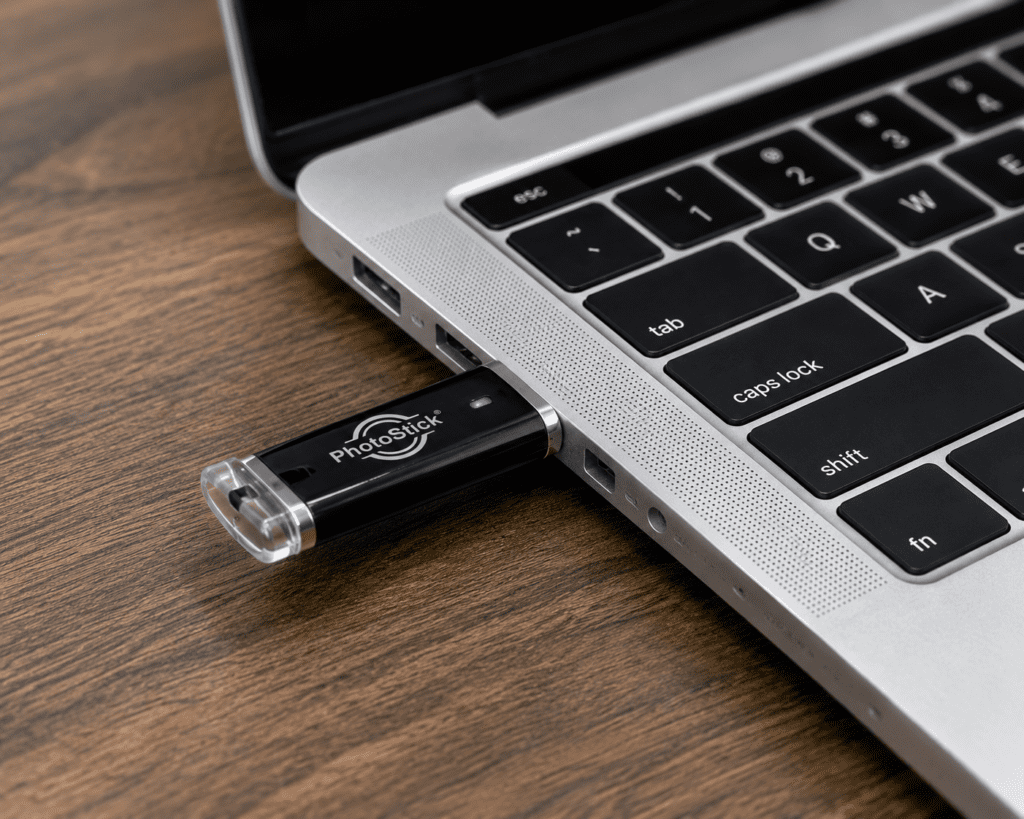
Symptoms: You plug in your PhotoStick and nothing happens. No notification sound, no icon in File Explorer or Finder, no LED light on the stick.
This is the single most-reported problem. Here’s how to diagnose and fix it.
Step 1: Check the basics
- Unplug and firmly reinsert the PhotoStick
- Try a different USB port on your computer — ideally a port directly on the machine, not a hub
- If your computer only has USB-C ports, try a USB-C to USB-A adapter (don’t use a USB hub — they don’t always deliver enough power)
Step 2: Restart your computer
This sounds obvious but resolves about 30% of non-recognition issues. Power the machine fully off, wait 10 seconds, then turn it back on. Plug the PhotoStick in after the OS has fully loaded.
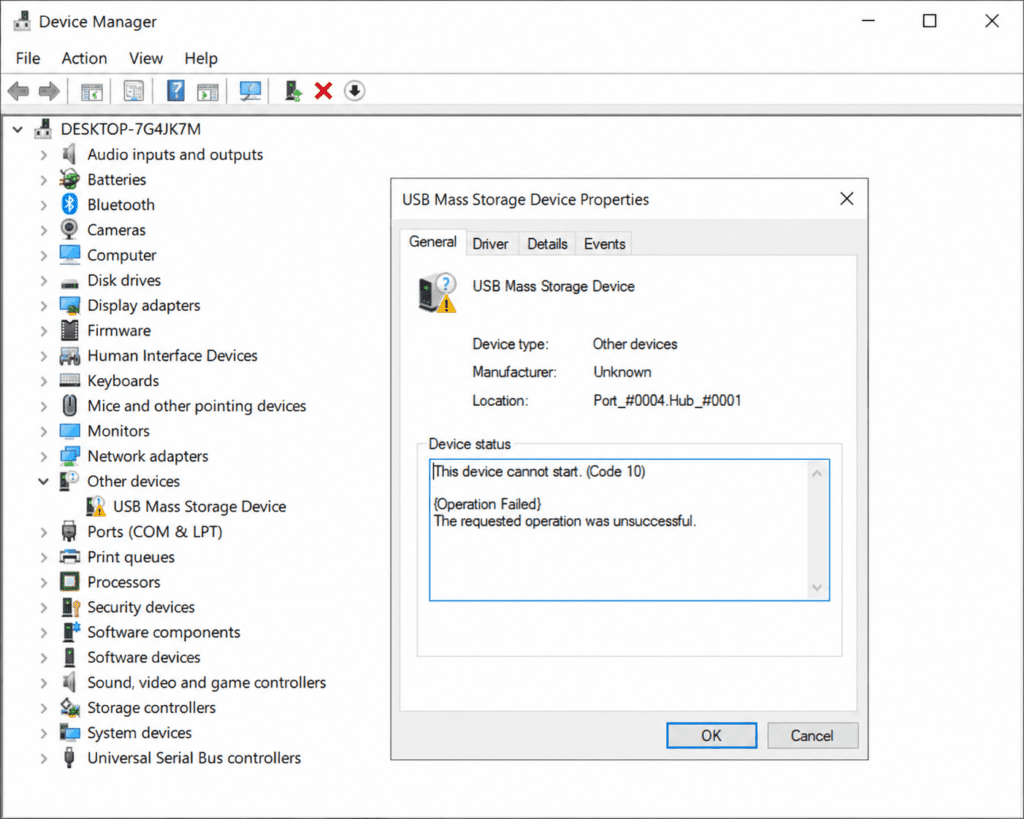
Step 3: Check Device Manager (Windows)
- Press Windows + X → click Device Manager
- Look for a yellow warning triangle under Universal Serial Bus Controllers or Disk Drives
- Right-click the flagged device → Update Driver → Search automatically
- If that fails, right-click → Uninstall device, then unplug and replug the PhotoStick
Step 4: Check Disk Utility (Mac)
- Open Spotlight (Cmd + Space) → search Disk Utility
- Look for your PhotoStick in the left sidebar — it may appear greyed out or unmounted
- Click it and hit Mount (or First Aid if it shows file system errors)
Step 5: Try a different computer
If the PhotoStick shows up on another machine, the issue is specific to your drivers or port configuration. If it doesn’t show up on any computer, the hardware is likely defective — contact the manufacturer for a replacement.
Fix #2: PhotoStick Won’t Open / App Won’t Launch
Symptoms: PhotoStick shows up on your computer but clicking the software icon does nothing, or the app opens briefly then closes.
For Windows:
- Open File Explorer → navigate to the PhotoStick drive
- Right-click the PhotoStick app → Run as administrator
- If Windows blocks it, click More info → Run anyway
- If the app still won’t open, download the latest version from the official website and run the installer directly
For Mac:
A common crash on macOS Ventura and Sonoma is caused by a missing SQLite library. The error looks like: “ThePhotoStick_Mac quit unexpectedly.”
Fix:
- Eject and reconnect the PhotoStick
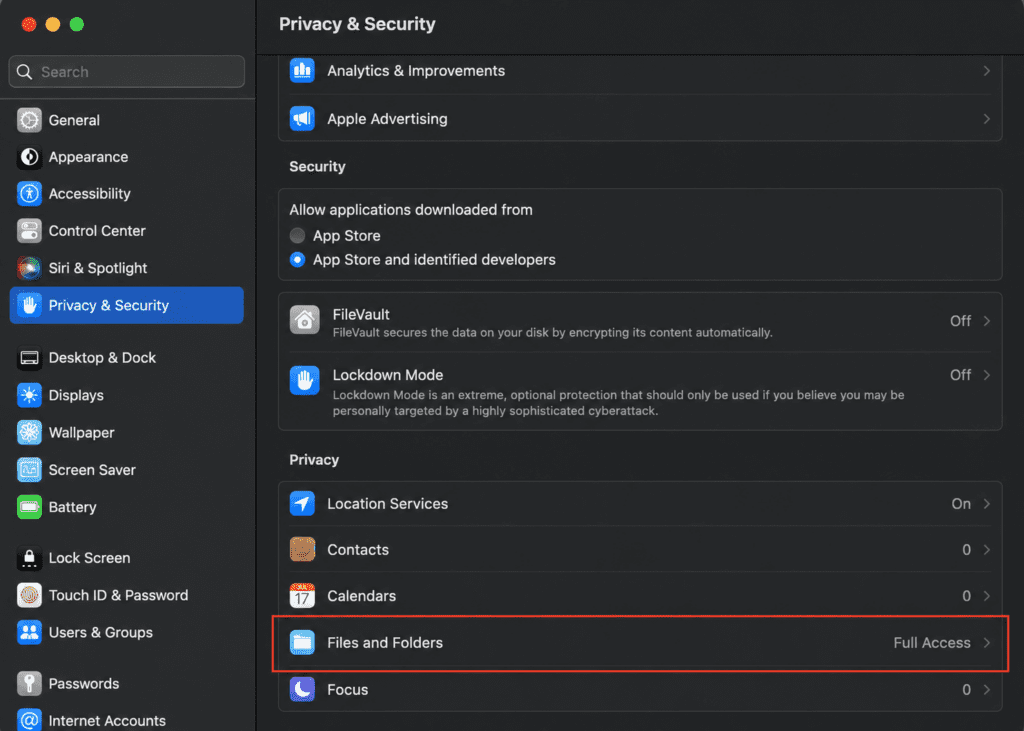
- Go to System Settings → Privacy & Security → scroll down to check if a PhotoStick-related app was blocked
- Click Open Anyway if you see it listed
- If the crash persists, check whether a software update is available — version 4.3.1+ or Omni app v2.6 (released February 2025) resolved this for many users on macOS 14.x
If the software is corrupted:
- Go to the PhotoStick’s official website
- Download the installer for your OS
- Run it while your PhotoStick is connected
Fix #3: PhotoStick Scanning Forever or Stuck
Symptoms: The progress bar barely moves, or scanning runs for hours without completing. Some users report 4+ hour scans that never finish.
This is one of the most frustrating known issues. There are several causes.
Cause A: Huge photo library
If your computer has 30,000+ photos or large video files, a first scan legitimately takes a long time. A 130GB library can take 2–4 hours. That’s not a bug — it’s the nature of scanning every file on your drive.
Fix: Let it run. Don’t cancel and restart repeatedly — each restart starts the scan from scratch.
Cause B: Scan includes system folders
PhotoStick scans all files matching photo formats. If it’s scanning Program Files or system directories, it slows dramatically.
Fix: Use the folder selection option to point PhotoStick at your Pictures folder specifically rather than scanning the whole drive.
Cause C: File system errors on the PhotoStick itself
If the drive has errors, it may loop or stall.
Fix:
- Windows: Open Command Prompt as admin → type
chkdsk X: /f /r(replace X with your PhotoStick’s drive letter) → let it complete - Mac: Open Disk Utility → select PhotoStick → click First Aid
Cause D: The stick is nearly full
A PhotoStick that’s 90%+ full will struggle to write new files efficiently.
Fix: Offload backed-up files to your computer, free up space, then rescan.
Fix #4: PhotoStick Not Finding Photos
Symptoms: PhotoStick scans and says it found 0 or very few photos — even though you know thousands exist on your device.
Why this happens:
- PhotoStick looks for specific file extensions (.jpg, .jpeg, .png, .heic, .mp4, .mov, etc.)
- Photos stored in cloud sync folders (iCloud Desktop, Google Drive sync) may not be local — PhotoStick can’t find cloud-only files
- Photos organized in unusual folder structures may be missed
Fixes:
- Download from cloud first. If you use iCloud Photos, open the Photos app → Preferences → iCloud → select “Download Originals to this Mac.” Let everything download before running PhotoStick.
- Point to specific folders. Don’t scan the whole drive — select your Pictures folder, Downloads folder, and Desktop separately.
- Check file format support. Older RAW formats from certain cameras may not be in PhotoStick’s supported list. Check the official site for the current supported format list.
- Disable iCloud Drive sync temporarily. Syncing while scanning can cause files to appear and disappear, confusing the scanner.
Fix #5: PhotoStick Finds Photos but Won’t Save Them
Symptoms: The scan completes and shows a number of found photos, but when you click GO/Save, nothing copies — or the progress bar fills instantly with no files transferred.
This is a documented problem specific to Mac Ventura and Sonoma.
Fixes:
- Grant Full Disk Access. Go to System Settings → Privacy & Security → Full Disk Access → add the PhotoStick app
- Check available space on the PhotoStick. If it’s full, files won’t save. Right-click the drive in Finder → Get Info
- Try saving a smaller batch. Select 50 photos at a time instead of everything at once
- Update the software. The company released bug fixes in app version 2.6 (February 2025) addressing save failures on macOS 14.x
If none of these work on Mac, multiple Trustpilot reviewers report that the company will issue a replacement unit — contact support directly.
Fix #6: PhotoStick Mac Troubleshooting
Mac-specific issues deserve their own section because macOS security settings have become significantly stricter since Ventura (2022) and Sonoma (2023). PhotoStick’s software was not always updated in time to keep pace.

Known Mac-Specific Issues
| Issue | Affected macOS | Fix |
|---|---|---|
| App quits unexpectedly | Ventura, Sonoma | Update to app v4.3.1+, grant Full Disk Access |
| Drive shows but won’t mount | Monterey+ | Use Disk Utility → Mount |
| Photos found but not saved | Ventura, Sonoma | Full Disk Access + v2.6 app update |
| Photos in random order (no date sort) | All Mac versions | Known limitation — company confirmed no date-sort on Mac |
| “Broken” driver message on first insert | Monterey+ | Unplug, restart Mac, replug |
Step-by-Step Mac Permissions Fix
- Open System Settings (not System Preferences — that changed in Ventura)
- Go to Privacy & Security
- Click Full Disk Access
- Click the + button and navigate to your PhotoStick drive
- Add the PhotoStick app executable
- Restart the PhotoStick app
macOS Sonoma Note
If you upgraded to macOS Sonoma (14.x) and your PhotoStick stopped working, you’re not alone. Several users on Apple Discussions reported that upgrading to macOS 14.2.1 specifically resolved crashes. If you’re on 14.0 or 14.1, try updating macOS first before anything else.
Fix #7: PhotoStick Windows 11 Troubleshooting
Windows 11 introduced stricter driver requirements and USB power management changes that affect some USB backup devices.
Fix A: Disable USB Selective Suspend
Windows 11 can put USB devices into a low-power state, causing them to disconnect mid-scan.
- Press Windows + R → type
powercfg.cpl→ press Enter - Click Change plan settings → Change advanced power settings
- Expand USB settings → USB selective suspend setting → set to Disabled
- Click OK and restart
Fix B: Update USB Drivers
- Press Windows + X → Device Manager
- Expand Universal Serial Bus Controllers
- Right-click each entry → Update driver
Fix C: Run as Administrator
Right-click the PhotoStick app → Run as administrator. Windows 11 User Account Control sometimes blocks the software from accessing all folders without admin rights.
Fix D: Check Windows Defender / Antivirus
Windows Defender or third-party antivirus can quarantine or block PhotoStick’s .exe file, especially after an update. Check your antivirus quarantine folder and whitelist the PhotoStick application.
Fix E: Use USB 2.0 Port
Some users report PhotoStick works more reliably on USB 2.0 (older black-slot ports) than on USB 3.0 (blue-slot) ports on Windows 11. Test both.
Fix #8: PhotoStick Keeps Disconnecting
Symptoms: PhotoStick disconnects mid-scan, or disconnects after a few minutes of use.
Causes and Fixes:
- USB power management — Apply Fix A from the Windows section above
- Faulty USB port — Try every port on your machine. Some USB 3.0 ports provide inconsistent power to certain devices
- Defective cable (for Omni model) — If your Omni uses a cable attachment, try a different cable
- Overheating — If the stick feels hot, stop using it immediately. This suggests a hardware fault. Contact the manufacturer.
- USB hub — Never use PhotoStick through a USB hub. Always connect directly to the computer
Fix #9: PhotoStick Won’t Connect to iPhone or Android
Symptoms: You plug the PhotoStick Omni or Mobile into your phone, and the app says “Insert PhotoStick” even though it’s inserted. Or the phone doesn’t react at all.
For iPhone (Lightning or USB-C):
- Open the ThePhotoStick Omni or ThePhotoStick Mobile app before plugging in the stick
- Once the app is open, plug in the PhotoStick
- If the phone asks for permission to access the device, tap Allow
- If you get “Insert the PhotoStick” despite inserting it: force-close the app completely (swipe up from the app switcher), then repeat
For Android:
- Some Samsung, Google Pixel, and OnePlus phones show the drive as a “generic USB device” rather than “PHOTOSTICK” — this is normal
- When prompted, tap Use This Folder and then Allow
- If nothing prompts: go to Settings → Connected Devices → USB → change to File Transfer mode
- Force-close and reopen the PhotoStick app
Known Incompatibility Warning
Several Android models — particularly Samsung Galaxy S22 with certain Android 14 builds — have been reported as incompatible by the company’s own support team, despite being listed as compatible on the website. If your phone appears on the compatibility list but support tells you it’s actually incompatible, you have grounds to push for a full refund. Document the conversation in writing.
Fix #10: PhotoStick Software Crashes or Quits Unexpectedly
If PhotoStick crashes repeatedly:
- Uninstall and reinstall the software completely (delete the app folder, not just the shortcut)
- Download the latest version from the official website — don’t use the version on the USB drive, as it may be outdated
- Check your OS version — PhotoStick Omni app v2.6 requires iOS 15+ and Android 10+; the Mac app requires macOS 11+
- Disable background apps that conflict with USB devices — antivirus, backup software (Backblaze, Time Machine during active backup), and cloud sync apps
Fix #11: PhotoStick Showing Wrong File Count
PhotoStick may report finding 5,000 photos when your actual count is 12,000. Or it might claim to have backed up files that aren’t on the stick.
Why this happens:
- The duplicate finder skips files already on the stick — this reduces the “new files” count
- PhotoStick only counts supported file formats. Unsupported formats aren’t counted
- Cache files, thumbnail files (.thm), and sidecar files may be counted or excluded inconsistently
Fix:
After a backup, manually browse the PhotoStick drive in File Explorer/Finder to count actual files. Don’t rely solely on the app’s reported number.
Fix #12: Duplicate Finder Issues
PhotoStick’s duplicate detection works by comparing file names and metadata — not always file content. This means:
- Renamed duplicates won’t be caught
- Same photo edited and re-saved as a new file won’t be flagged
- Duplicates from different folders may both be copied
If you’re getting thousands of duplicates on your stick, there’s no built-in bulk-delete tool in current versions. Your options:
- Use a free desktop app like dupeGuru (Windows/Mac) to clean the PhotoStick’s contents
- Format the stick and start fresh after the cleanup
Fix #13: How to Recover Files from a Failing PhotoStick
If your PhotoStick is partially readable but the software won’t open, you can still recover your photos.
Method 1: Direct file access
- Windows: Open File Explorer → navigate to the PhotoStick drive letter → browse the DCIM or PhotoStick folders manually
- Mac: Open Finder → click the PhotoStick in the sidebar → browse folders directly
Method 2: Recovery software
If the drive appears but files seem corrupted or missing, try free recovery tools:
- Recuva (Windows, free) — excellent for recovering photos from USB drives
- PhotoRec (Windows/Mac/Linux, free) — open-source, very thorough
- Disk Drill (Mac/Windows, limited free version) — easier interface
Method 3: Professional recovery
If the drive doesn’t appear at all on any computer, the hardware has failed. A local data recovery shop can often recover files from failed flash storage. Cost is typically $40–$200 depending on severity.
Critical: Do NOT format the drive if you still need to recover files. Formatting overwrites data and makes recovery much harder.
PhotoStick Hardware vs Software Diagnosis
Use this quick diagnostic before spending more time troubleshooting:
| Symptom | Likely Cause | Action |
|---|---|---|
| No LED light at all | Hardware dead or wrong port | Try all ports; if no light anywhere, hardware defect |
| LED on but not recognized | Driver or file system issue | Software fix (see Fix #1) |
| Recognized but app crashes | Software/OS compatibility | Software fix (see Fix #10) |
| Works on one computer, not another | Driver conflict on second machine | Driver fix on second machine |
| Works on PC, not Mac | OS compatibility (or vice versa) | Mac-specific fix (see Fix #6) |
| Gets hot during use | Hardware defect | Stop using immediately, request replacement |
| Works initially then fails mid-scan | USB power management or heat | Power management fix (see Fix #8) |
| Never works despite all fixes | Hardware defect | Contact support, request replacement |
Product Overview & Pricing
| Feature | Detail |
|---|---|
| Product name | PhotoStick / PhotoStick Omni / PhotoStick Mobile |
| Manufacturer | Prairie IT LLC (Colorado, USA) |
| Price range | $34.99 (8GB) — $149.99+ (256GB) |
| Compatibility | Windows 10/11, macOS 11+, iOS 15+, Android 10+ |
| File formats | JPEG, PNG, HEIC, MP4, MOV, and 30+ others |
| Refund policy | 60-day money-back (original purchase) or 30-day (some retailers) |
| Warranty | Limited — verify at purchase |
| BBB rating | B rating (14 customer reviews averaging 1/5 stars) |
| App ratings | Android: 1.7/5 · iOS: 1.9/5 (as of early 2025) |
| Amazon rating | 3.3–3.6/5 stars (varies by model) |
On pricing: The 256GB PhotoStick Omni retails for over $200. A SanDisk Ultra Dual Drive USB-C with similar capacity costs under $30 on Amazon. You’re paying for the backup software, not the storage hardware. Whether that’s worth it depends entirely on your comfort level with technology.
Pros and Cons
✅ Pros
- Genuinely simple for non-technical users — one button backup
- No monthly subscription fee (unlike iCloud or Google One)
- Offline backup means no internet dependency
- Automatic duplicate detection reduces redundant files
- Compatible across multiple platforms (when working correctly)
- 60-day refund policy gives reasonable testing time
- Company does respond to support requests and offers replacements
❌ Cons
- Significantly overpriced compared to standard USB drives
- App ratings on both iOS and Android are very low (under 2/5 stars)
- Known compatibility issues with specific Android models and macOS versions
- Mac version cannot sort photos by date — confirmed limitation
- Slow scan speeds on large libraries
- Software can corrupt the stick’s file system, requiring repair
- 30-day return window on some purchases is too short to discover problems
- Multiple complaints about non-delivery and poor return process enforcement
Competitor Comparison


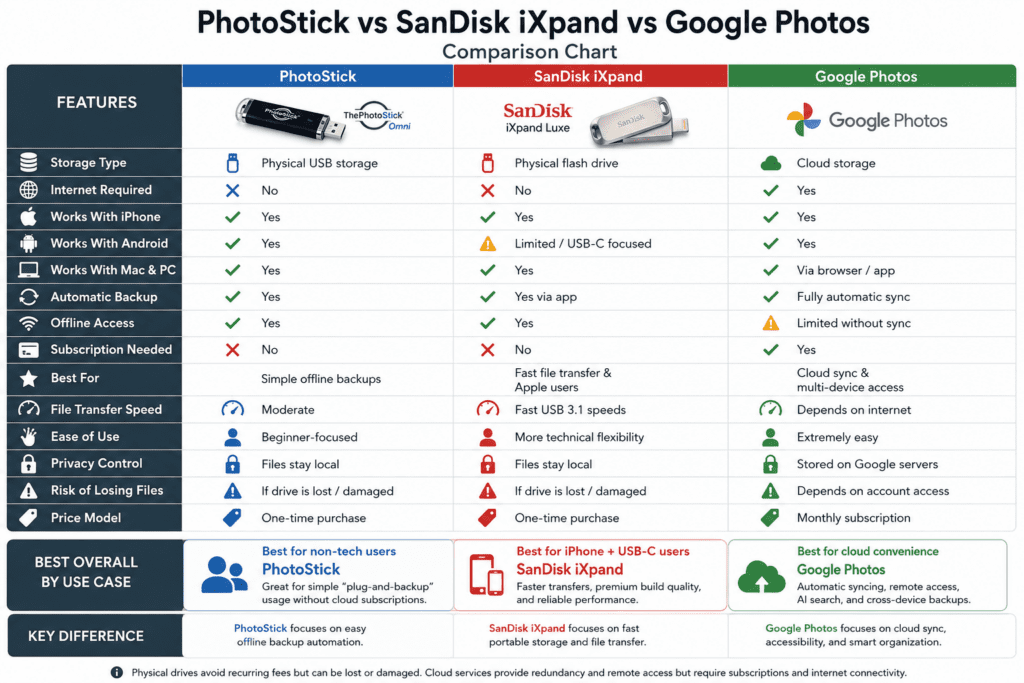
| PhotoStick Omni (128GB) | SanDisk iXpand (128GB) | iCloud (200GB) | Google Photos | |
|---|---|---|---|---|
| Price | ~$99 | ~$49–$69 | $2.99/month | Free (15GB) / $2.99/month |
| One-time cost? | Yes | Yes | No | No |
| Ease of use | High (1 button) | Medium (requires app) | Very high (automatic) | Very high (automatic) |
| Auto backup | Yes | Yes | Yes | Yes |
| Offline storage | Yes | Yes | No | No |
| Cross-device | Yes (all platforms) | iPhone/iPad only | Apple ecosystem | All platforms |
| App rating | ⭐1.9 (iOS) | ⭐4.2 (iOS) | ⭐4.8 (iOS) | ⭐4.6 (iOS) |
| Duplicate detection | Basic | None | None | Yes (advanced AI) |
| Privacy | High (offline) | High (offline) | Medium (Apple’s servers) | Lower (Google’s servers) |
| Customer support | Mixed | Good | Excellent | Good |
| Value for money | Low–Medium | High | Depends on usage | High |
Bottom line: For a privacy-focused, offline-only backup with no tech knowledge needed, PhotoStick fills a real gap. But for most users, the SanDisk iXpand (iPhone users) or Google Photos (Android/cross-platform) offers better reliability at lower cost.
Is PhotoStick a Scam?
Short answer: No, it’s not a scam — but it has serious quality and value problems.
Here’s what the evidence actually shows:
What’s legitimate:
- Prairie IT LLC is a real company with a verifiable address and BBB registration (B rating)
- The product does what it claims when it works correctly
- Customer support does respond and does offer replacements
- The 60-day money-back guarantee is generally honored, though some customers report difficulty getting responses
What’s genuinely concerning:
- App store ratings are extremely low (under 2/5 stars on both platforms) for a product that’s been available for years
- Some customers report non-delivery, especially for international orders
- Compatibility claims on the website have been found to be inaccurate for specific phone models
- The pricing represents a large markup over equivalent hardware — a 256GB Omni at $200+ vs a $30 dual-connector USB drive with similar capacity
- Multiple Trustpilot reviewers report difficulty obtaining refunds after the 30-day window
The counterfeit risk: Multiple trustworthy sources note that counterfeit PhotoStick products are sold on Amazon, eBay, and other marketplaces. If you didn’t buy directly from thephotostick.com or getphotostick.io, there’s a genuine risk your device is a counterfeit with no app support and no valid warranty.
Verdict: Legitimate product, overpriced hardware, inconsistent software quality, real but stretched customer service. Buy from the official site only, use the full 60-day window to test it, and keep your receipt.
Who Should (and Shouldn’t) Buy PhotoStick
✅ Good fit for:
- Non-technical users (parents, grandparents) who find cloud services confusing
- People with privacy concerns about storing photos on Google or Apple servers
- Users with slow or unreliable internet who can’t rely on cloud backup
- Anyone who wants a one-time payment rather than a monthly subscription
- Users on Windows 10/11 with straightforward USB 2.0 setups
❌ Not a good fit for:
- Tech-comfortable users — you’ll get better results with Google Photos, iCloud, or SanDisk iXpand
- Mac users on Ventura/Sonoma who want seamless date-sorted backups — that feature doesn’t exist on Mac yet
- Android users with newer flagship models (check your phone model against the official compatibility list before buying)
- Users who want to recover deleted photos from their phone — PhotoStick copies existing photos, it doesn’t recover deleted ones
- People expecting instant backups — large libraries can take hours
Frequently Asked Question
Why is my PhotoStick not finding any photos?
Your PhotoStick may not find photos if they’re stored in cloud-only sync folders (iCloud or Google Drive), in unsupported file formats, or in folders the scan didn’t reach. Download cloud photos locally first, then point the scan specifically at your Pictures folder.
How do I fix a PhotoStick that keeps saying “scanning” without progress?
Cancel the scan, run CHKDSK (Windows) or First Aid in Disk Utility (Mac) on the PhotoStick drive, then restart your computer and try again. Scanning a very large photo library (30,000+ files) can legitimately take 2–4 hours on first run.
Why does PhotoStick say “device not recognized” on Windows 11?
Windows 11 USB power management can disconnect devices mid-use. Disable USB Selective Suspend in Power Options, update your USB controller drivers in Device Manager, and always connect directly to the PC — never through a hub.
My PhotoStick worked before and now it doesn’t. What changed?
A macOS or Windows update most commonly causes this. Check whether you recently updated your OS. If so, download the latest PhotoStick software version from the official website and reinstall it.
How do I fix PhotoStick not working on Mac Ventura or Sonoma?
Go to System Settings → Privacy & Security → Full Disk Access → add the PhotoStick app. Also update to app version 4.3.1 or higher. Known crash bugs on macOS 14.x were addressed in the February 2025 update (v2.6 for Omni app).
Can PhotoStick recover deleted photos?
No. PhotoStick copies existing photos — it does not recover deleted files. For deleted photo recovery, use Recuva (Windows) or PhotoRec (Mac/Windows) on your computer’s drive.
Why can’t I sort photos by date on Mac?
This is a confirmed limitation of the Mac version. PhotoStick support has acknowledged that date-sorted folders are not available on macOS. Files appear in a random order. There’s no workaround within the app — you’d need to manually organize files after backup.
How long should a PhotoStick scan take?
A library of 2,000 photos (about 15GB) typically takes 15–45 minutes. A library of 25,000 photos (130GB) can take 3–5 hours on the first scan. Subsequent scans are faster because the duplicate finder skips already-backed-up files.
My PhotoStick is full. What do I do?
Your options are: (1) transfer backed-up files from the stick to your computer’s hard drive to free space, (2) delete duplicates or lower-priority files from the stick, or (3) purchase a larger-capacity PhotoStick.
Is it safe to format my PhotoStick?
Formatting erases all data on the stick. Only format as a last resort if the drive has severe file system errors. Always move your backed-up photos to your computer first before formatting.
What’s the difference between PhotoStick and PhotoStick Omni?
The original PhotoStick works with computers only (USB-A). The PhotoStick Omni adds connectors for iPhone, Android, and USB-C devices. If you’re backing up phone photos, you need the Omni or Mobile version.
Can I use PhotoStick on both Windows and Mac?
The Omni model supports both. However, because the file systems can differ, it’s recommended to format the stick using ExFAT for cross-platform compatibility. Check the official support docs before reformatting.
How do I contact PhotoStick support?
Visit thephotostick.com/pages/support-center. Support is available Monday–Saturday 8am–8pm PST via live chat and email. Response times are generally within 24 hours for email.
Is PhotoStick compatible with iPhone 15 and 16?
iPhone 15 and 16 use USB-C ports. The standard Lightning PhotoStick Omni connector won’t fit. You need the USB-C version of the Omni or an adapter. Check your model before purchasing.
Why does PhotoStick find duplicates of photos I’ve already backed up?
The duplicate finder compares filenames and basic metadata, not image content. If a photo was renamed, re-edited, or saved in a different location, it may be treated as a new file. You can clean duplicates from the stick using a free tool like dupeGuru after your backup is complete.
Final Verdict
PhotoStick solves a real problem elegantly — when it works. The concept is solid: one button, offline backup, no subscription. For the right user in the right setup, it genuinely delivers.
The problem is consistency. App store ratings below 2/5 stars aren’t a fluke. Scanning failures, Mac Sonoma crashes, Android incompatibilities, and a value proposition that requires paying $100+ for what is fundamentally a $20 USB drive with software — these are real issues backed by thousands of real user reviews.
Our recommendation:
- If you bought PhotoStick and it’s not working, work through the fixes in this guide systematically. Most issues have solutions.
- If multiple fixes fail and the stick is under 60 days old, request a replacement from the company before asking for a refund.
- If you haven’t bought yet and you’re technically comfortable: consider SanDisk iXpand (iPhone) or Google Photos + a standard USB drive as better-value alternatives.
- If you’re buying for someone non-technical who genuinely won’t use more complex solutions: PhotoStick can work — just buy from the official site, keep the receipt, and test it within the return window.